BMW’s Auto Start/Stop resets to “on” after every drive cycle, even if you disable it, forcing you to toggle the button near the start/stop each time you restart.
You access deeper settings through iDrive’s “Vehicle” menu under “Driving settings,” but they won’t persist without dealer coding. Discover how to override this for good.
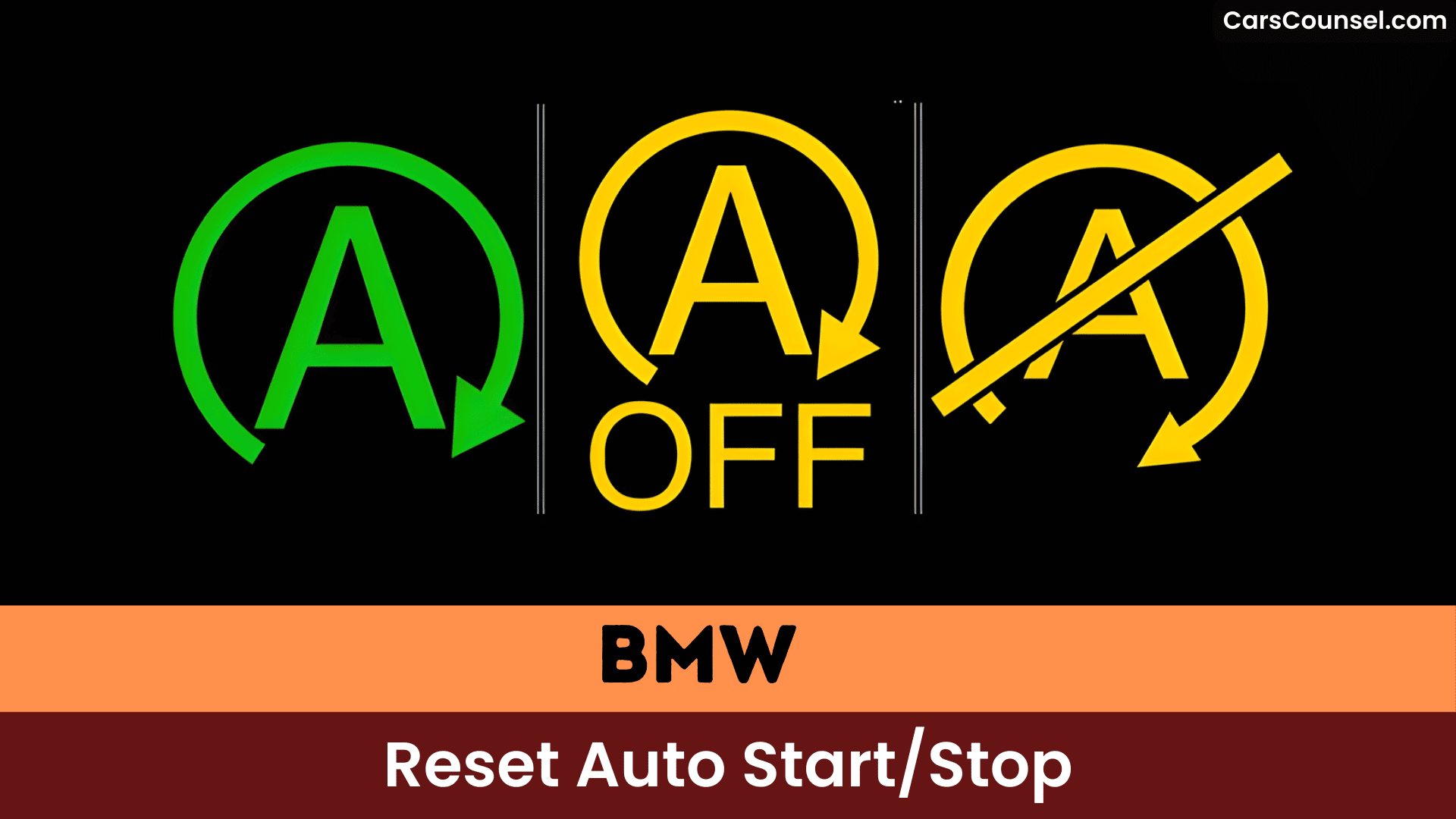
Quick Navigation
Key Takeaways
- Open the iDrive Apps menu, select “Vehicle,” then “Driving settings” to access Auto Start/Stop options.
- Toggle “Auto Start/Stop” off or choose “Deactivate Auto Start/Stop” to disable it for the current drive.
- Auto Start/Stop resets to “on” at each new drive cycle, so you must repeat the toggle every drive unless coded otherwise.
- Sport or Sport Plus drive modes automatically disable Auto Start/Stop without changing iDrive settings.
- For persistent disablement, request dealer coding or use third‑party coding/apps or memory modules to retain the last setting.
Understanding Auto Start/Stop: Purpose and Basics
BMW’s Auto Start/Stop feature boosts fuel efficiency by shutting off your engine at temporary stops, like traffic lights, when you’re in drive and pressing the brake pedal.
You’ll get a benefits overview as it restarts seamlessly when you release the brake, minimizing idling for better fuel efficiency and lower emissions.
Safety checks guarantee it won’t stop if your seatbelt’s unbuckled or driver’s door is open, confirming you’re ready to go.
It defaults to on each drive cycle but you can deactivate it manually, or it auto-disables in SPORT or M modes for performance.
How Auto Start/Stop Works in BMW Operating Systems
Your BMW’s Auto Start/Stop shuts down the engine when you’re stationary, the brake pedal’s depressed, and your seat belt’s buckled or driver’s door’s closed.
It restarts automatically when you release the brake, ensuring seamless driving.
You’ll find it deactivates in modes like S or SPORT PLUS, but resets to on after each drive cycle.
Engine Shutdown Criteria
| Condition | Description | Requirement |
|---|---|---|
| Brake Pedal | Depressed while stationary | Held firmly |
| Seat Belt | Driver’s must be buckled | Or door closed |
| Automatic Hold | If activated | Press accelerator after release |
| Safety Mode | Prevents auto-restart | Unbuckled belt or open door |
| Restart Trigger | Brake release | Engine auto-starts |
You’ll notice seamless operation under these criteria.
Automatic Restart Triggers
Although the engine cuts out when you’re stopped with the brake depressed to save fuel, it restarts immediately when you release the brake or press the accelerator, giving a seamless return to drive.
You’ll see the automatic restart conditions: brake release or accelerator input always trigger the engine restart scenarios when seat belt and door safety conditions are met or SPORT mode hasn’t disabled the system.
If you manually shut the engine during a stop, releasing the brake or pressing the accelerator also forces a restart so you can resume driving without delay.
These triggers prioritize quick, predictable restarts for efficiency and safety.
Accessing Auto Start/Stop Settings via Idrive OS9
Follow these steps:
- Select “Vehicle” from the Apps menu.
- Tap “Driving settings”, then “Drivetrain and chassis”.
- Choose “Activate Auto Start/Stop” and select your preferred setting.
You’ll activate or deactivate the function as needed.
Note that manual deactivation resets to “on” after each drive cycle.
Step-By-Step: Activating Auto Start/Stop From Driving Settings
To activate Auto Start/Stop from iDrive, go to the Apps menu, choose Vehicle, then Driving settings and open Drivetrain and chassis.
Select Activate Auto Start/Stop and toggle your preferred activation setting.
Note that the system resets after each drive and will be unavailable in certain drive modes like S, L, or SPORT PLUS when you want performance without automatic stops.
Activate From Idrive
- Choose Drivetrain and chassis to locate the Auto Start/Stop option, which supports Driving efficiency and highlights Auto Start/Stop benefits.
- Select Activate Auto Start/Stop to toggle the feature on or off for the current drive; it resets to on after each drive cycle, so reactivate if you prefer it enabled.
- Note manual deactivation occurs automatically in modes like S, L, and SPORT PLUS to prioritize performance.
Toggle Auto Start/Stop
Access the iDrive screen by selecting the Apps menu, then tap Vehicle, Driving settings, and Drivetrain and chassis.
Select Activate Auto Start/Stop to toggle it on for auto efficiency and driving convenience, shutting off the engine at stops to save fuel. It deactivates automatically in S, L, or SPORT PLUS modes and reactivates each drive cycle. Verify you’re in D with the brake depressed for it to engage.
While driving, swipe down the center display and tap Auto Start/Stop to toggle off temporarily.
Drive Mode Exceptions
- Sport (S): Deactivates for sharper throttle and quicker restarts.
- Sport Plus: Fully disables to maximize power delivery.
- Low (L): Prevents stops during aggressive braking scenarios.
Reactivate via iDrive after switching modes.
Step-by-Step: Deactivating Auto Start/Stop for the Current Drive
To deactivate Auto Start/Stop for the current drive on your BMW X1 or X3, swipe down on the center information display and tap the Auto Start/Stop tile to toggle it off. Alternatively, press the Drive Settings button on the center console, then tap Auto Start/Stop to deactivate it.
This matches your Driving Preferences without affecting permanent settings. Note that Auto Start/Stop resets to “on” after each drive cycle—you’ll need to repeat if desired. In SPORT mode, it’s automatically off for dynamic performance.
Drive Modes That Automatically Disable Auto Start/Stop
BMW’s drive modes like SPORT, S, L, and SPORT PLUS automatically disable Auto Start/Stop to prioritize performance and engine responsiveness.
- Sport / SPORT PLUS — These modes switch off Auto Start/Stop so your engine stays running, reflecting performance preferences and immediate throttle response.
- S and L manual modes — Selecting S or L via the gear selector prevents automatic stops during aggressive or low-speed maneuvers, aligning with expected drive mode impacts.
- My Modes/Driving Experience settings — Choosing a performance-oriented profile enforces Auto Start/Stop deactivation for the current drive, ensuring consistent engine readiness and sharper driving feel.
Manual Engine Stop Options and M Steptronic Sport Interaction
You can manually stop the engine in M Steptronic Sport by shifting the selector to neutral and pressing the Start/Stop button, giving you control during spirited driving.
The engine will restart automatically when you release the brake or press the accelerator, and some drive modes will disable Auto Start/Stop while others leave it active.
Remember the system defaults to Auto Start/Stop ‘on’ after each drive, so you’ll need to deactivate it again if you want it off for the next drive.
Manual Stop Methods
- Shift the M Steptronic Sport transmission to manual mode via the gear selector to deactivate Auto Start/Stop.
- Select your desired gear, then press the Start/Stop button to manually stop the engine.
- Reactivate the feature after each drive cycle for normal operation.
This guarantees precise control without automatic intervention.
M Steptronic Interaction
Shifting the M Steptronic selector lever to neutral lets you manually stop the engine and temporarily deactivate Auto Start/Stop.
You can also press the Start/Stop button to switch the engine off while stationary, giving you multiple manual stop methods.
Selecting M Steptronic Sport mode automatically disables Auto Start/Stop to preserve engine responsiveness and support Performance driving.
That Sport setting improves throttle mapping and shift behavior as part of the M Steptronic advantages, delivering a more dynamic, spirited drive.
Remember Auto Start/Stop reverts to its default on each new drive, so you’ll need to disable it again if you prefer it off.
Drive Mode Effects
Drive modes like Sport (S), Low (L), and Sport Plus automatically deactivate Auto Start/Stop to boost performance and dynamics.
- You’ll notice M Steptronic Sport lets you perform a manual engine stop, giving you precise control over engine behavior for sharper drive performance and tailored driver preferences.
- To turn Auto Start/Stop off yourself, press the Drive Settings button on the center console or use the iDrive screen; Sport modes may already override it for immediate responsiveness.
- Remember the system re-enables itself at the next drive cycle, so you’ll need to deactivate it again if you prefer it off during traffic or spirited driving.
Conditions Required for the Engine to Stop Automatically
When the Auto Start/Stop system can safely deactivate the engine, it will do so only while your vehicle is fully stationary with the brake depressed and a set of safety conditions met.
Engine stops only when fully stationary with the brake held and safety conditions satisfied.
You’ll notice this engine behavior optimizes driving efficiency by halting fuel use at idle.
Buckle your seatbelt or close the driver’s door to enable it—safety mode blocks auto-stop if either is unmet.
Release the brake to restart automatically. If using Automatic Hold, press the accelerator after stop.
The system won’t engage with unbuckled belts or open doors, prioritizing safety.
Conditions That Trigger an Automatic Engine Restart
After the engine stops at a full halt, it restarts automatically as soon as you release the brake pedal, provided the system’s safety checks are satisfied and the driver’s belt is fastened or the driver’s door is closed (safety-mode conditions will prevent an automatic restart).
If your car has Automatic Hold you can also restart the engine simply by pressing the accelerator.
- Release the brake — immediate restart if safety features OK and belt fastened or door closed.
- Buckle the driver’s seatbelt or close the door — triggers restart when other checks pass.
- Press accelerator with Automatic Hold — restarts to preserve engine efficiency.
Safety Mode, Driver Detection, and Start/Stop Restrictions
Because safety mode ties engine restarts to confirmed driver presence, Auto Start/Stop won’t automatically restart the engine if the system detects the driver’s door open or the seatbelt unbuckled; in that case you’ll need to press the Start/Stop button to restart the motor.
> Safety mode prevents Auto Start/Stop restarts if driver’s door is open or seatbelt unbuckled—press Start/Stop button to restart.
Safety mode implications restrict automatic stops unless you’ve buckled up and the door’s closed, with the brake pedal depressed and vehicle stationary for driver detection.
If you’re undetected, functionalities halt to boost safety.
You’ll press the accelerator for Automatic Hold restarts, ensuring driver engagement before the engine fires up.
Climate Control Behavior When the Engine Is Off
- You’ll notice reduced airflow, conserving energy during engine-off periods.
- Automatic climate control runs at limited capacity, ensuring occupant comfort.
- The system deactivates if no driver is detected, prioritizing safety.
In safety mode, press the Start/Stop button to restart the engine and fully reactivate climate functions. Performance adjusts in standby to optimize resources.
Persistent Settings, Resetting After Each Drive Cycle, and Dealer Options
Your BMW’s Auto Start/Stop resets to on after each drive cycle, so you must manually deactivate it every time unless you use aftermarket solutions.
These include coding apps like BimmerCode or plug-in memory modules that retain your last setting, eliminating the per-drive reset.
If issues persist, visit your BMW dealer for professional programming or troubleshooting.
Last-User Setting Memory
To manage it effectively:
- Access settings via iDrive: Apps > Vehicle > Driving settings > Drivetrain and chassis for quick toggles.
- Note automatic deactivation in SPORT PLUS mode for better performance.
- Visit your dealer; technicians use diagnostic tools to adjust or reset Auto Start/Stop persistently.
Per-Drive Reset Requirement
Most BMWs will revert the Auto Start/Stop setting back to on after each drive cycle, so you’ll need to turn it off every time you restart the car unless you’ve had dealer-level coding applied to change that behavior.
You can toggle Auto Start/Stop via iDrive (Apps > Vehicle > Driving settings > Drivetrain and chassis) or the Drive Settings button, and certain modes (S, L, SPORT PLUS) disable it automatically, affecting per drive implications and your user preferences.
To make the change persistent you’ll need dealer coding, third‑party coding apps, or a memory module—consult a dealer for options.
Dealer Programmable Option
- Dealer programmable option: request coding.
- Persistent settings: memory or default-off coding.
- Reset per drive: stock behavior unless coded.
Practical Tips: When to Leave Auto Start/Stop On or Turn It Off
When you’re stopping in slow traffic or at long lights, leave Auto Start/Stop on to cut fuel use and emissions during idling, since the system automatically shuts the engine off when you’re stationary and the brake is depressed to save fuel and CO2.
The eco friendly benefits are clearest in stop‑and‑go driving, lowering fuel burn and tailpipe emissions.
Keep it on for everyday commuting; turn it off for performance considerations like SPORT mode, spirited driving, or heavy traffic where responsiveness matters.
Also disable it if the seatbelt’s undone or the door’s open, since the system stays inactive for safety.
Troubleshooting Common Auto Start/Stop Issues
Troubleshoot BMW Auto Start/Stop issues by first resetting it via the iDrive screen: go to Apps > Vehicle > Driving settings > Drivetrain and chassis, then toggle “Activate Auto Start/Stop.”
Confirm you’re in Drive (D) with the brake fully depressed while stationary, as it won’t engage if your seatbelt’s unbuckled or door’s open for safety.
If the engine won’t restart, check Automatic Hold and press the accelerator if required.
Consider user experiences pointing to battery, A/C load, or accessory draw affecting engagement and the feature’s environmental impact when deciding to keep it on.
- Check mode, brake, seatbelt, door.
- Verify Automatic Hold and accessories.
- Inspect battery health and electrical load.
Frequently Asked Questions
Why Is My BMW Auto Start Stop Not Working?
Your BMW’s auto start/stop issues stem from a weak battery, unbuckled seatbelt, open door, SPORT mode, low charge, or faulty sensors—you haven’t depressed the brake fully or reactivated it via iDrive.
How Do I Reset My Start Stop System?
Access your iDrive’s system settings to start the reset process: Go to Apps > Vehicle > Driving settings > Drivetrain and chassis > Activate Auto Start/Stop, then select “on.” Make sure you’re in D mode with brake depressed.
How Do I Permanently Turn off Auto Start Stop on My BMW?
You can’t permanently turn off auto stop on your BMW without coding. Navigate iDrive to Apps > Vehicle > Driving preferences > Drivetrain and chassis, select “Activate Auto Start/Stop,” and deactivate—it resets each drive.
How to Activate Start Stop in BMW?
About 40% of urban fuel use occurs during idling, so activating start stop features can save fuel. To enable it, go to iDrive Apps > Vehicle > Driving settings > Drivetrain and chassis and choose Activate Auto Start/Stop.
Conclusion
You’ve mastered toggling BMW’s Auto Start/Stop—like flicking the switch on that relentless engine hum at every light. Swipe down, tap Driving Settings, or shift to Sport mode; you’re in control for the drive. It resets to “on” each cycle, so repeat or investigate dealer coding for permanence. Drive efficiently, or release the roar—your call keeps the road yours.